Blogger Start Guide

Blogger Guide, Blogger Start Guide, Blogger Help Guide

Selasa, 28 Oktober 2014

Blogger Guide, Comment Inbox

Blogger Guide, Comment Inbox

To make it easier for you to manage your comments, we’ve created a new Comments tab for you to access them. Here, you can manage published comments, comments that have been flagged as spam and comments awaiting moderation if you have turned on Comment Moderation.
Users with Comment Moderation turned on will continue to see comments that need moderation and have not been flagged as spam in Comments | Awaiting Moderation. Users without Comment Moderation will not see any comments in Comments | Awaiting Moderation.

Spam Inbox

Blogger now filters comments that are likely spam comments to a Spam Inbox, much like the spam folder in your email. When someone leaves a comment on your blog, it will be reviewed against our spam detector, and comments that are identified as possible spam will be sent to your blog’s Spam Inbox, found at Comments | Spam.
You can help improve our ability to automatically detect spam comments by checking your Spam Inbox and deleting spam comments and marking real comments that may have been flagged as spam as Not Spam.
If you have questions about what constitutes spam on Blogger, please review our Content Policies.
Diposting oleh Kormad di 02.12 Tidak ada komentar:
Kirimkan Ini lewat EmailBlogThis!Bagikan ke XBerbagi ke FacebookBagikan ke Pinterest

Blogger Guide, The word-verification option

Blogger Guide, The word-verification option

To prevent automated software from posting spam comments on your blog, you can ask visitors to enter a short code called a CAPTCHA, before they can post.

Turn on word verification:

  1. Sign in to blogger.com
  2. Select "Settings" from the drop-down menu.
  3. On the left, click Posts and comments.
  4. Under "Comments," select Yes for "Show word verification." Visitors to your blog will be shown an image of letters or numbers to type to get permission to comment.

With every visual CAPTCHA there will also be an audio version, for visually impaired users. Just click the icon next to the word verification field, and you will hear a list of numbers. Typing these numbers will let you complete the verification step.
Note: Even if you don't have word verification turned on, anonymous commenters might be asked to enter some text. This helps protect your blog from abuse.

Related Articles

  • Keeping comments clean
Diposting oleh Kormad di 02.12 Tidak ada komentar:
Kirimkan Ini lewat EmailBlogThis!Bagikan ke XBerbagi ke FacebookBagikan ke Pinterest

Blogger Guide, Comment with OpenID


Blogger Guide, Comment with OpenID

OpenID is an open standard that allows users of OpenID-enabled services to log in to any OpenID-supported site with one set of login credentials. What does that mean for your blog? It's a way to authenticate user comments on your blog, without requiring your readers to have a Google Account. For example, let's say you have a friend, Brady from LiveJournal, who doesn't have a Google Account. With OpenID, he can now comment on your blog using his OpenID credentials and identify himself as the owner of http://brady.livejournal.com, instead of commenting anonymously. Please see the OpenID site for more information about OpenID.

How do I Enable OpenID Commenting on my Blog?

Simply go to your Settings | Posts and comments tab and select "Registered Users" or "Anyone" for the "Who Can Comment" option. Don't forget to click "Save Settings" at the top of the page.
Note that allowing "Anyone" to comment on your blog will allow more than just OpenID users to comment.

How do I comment Using my OpenID identity?

Start off by going to the comment page of the post where you'd like to comment. Then, select your OpenID provider from the drop down menu next to the "Sign-in using" option. If your OpenID provider is not on the list, please choose the "Any ID" option.
Next, provide your OpenID login information. After you click "Publish Your Comment," you will be redirected to your OpenID provider to authenticate your ID. After authenticating with the provider, you will return to the comments page and your comment will automatically be posted. Your comment will appear appear with a OpenID icon to the left of the comment.
Note that your display name is the name sent to us by the OpenID provider. If no display name is given, we will try to derive it from your OpenID URL. This is the name that will be displayed as the author of the comment and will be linked to your OpenID URL.
Diposting oleh Kormad di 02.11 Tidak ada komentar:
Kirimkan Ini lewat EmailBlogThis!Bagikan ke XBerbagi ke FacebookBagikan ke Pinterest

Blogger Guide, Moderate comments

Blogger Guide, Moderate comments


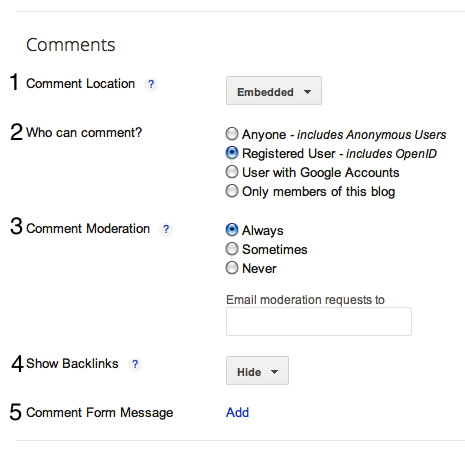
The ability to moderate comments gives you control over the kind of messages people leave on your blog. You can find the comment moderation (3) setting on the Settings | Posts and comments tab, along with all of the other comment settings:
Settings for comments You can decide if you'd like to always, sometimes, or never moderate comments. If you select "Always," you'll have the option to enter in an email address where you can receive notifications that there are comments awaiting moderation. If you select "Sometimes," you'll be prompted to specify how many days old the post should be before it requires moderation. "Sometimes" is a good option for bloggers who want to make sure that comments on all posts are kept fresh and recent, and that conversation or debates on old posts aren't suddenly rekindled.
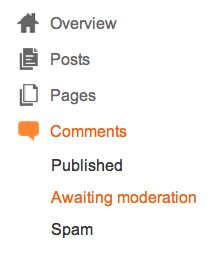
If you decide to set up comment moderation, all incoming comments will go to a special "Awaiting moderation" page, which you can find under the Comments | Awaiting moderation tab:
Settings for comments On this page, you'll see a list of all the comments that have been created but have not yet been approved or rejected. (This list excludes any comments made by admin members of the blog.)
Each line in the list displays the comment, the author's name, and the date it was created. You can approve or delete the comment, or mark it as spam by hovering over the comment and selecting the option you'd like. You can also select multiple comments and publish or reject them all at once by using the check boxes and buttons at the top of the list.
This entire process can also be done via email. If you entered an email address for moderation, you'll get a message for each comment which will contain "Publish" and "Reject" links, as well as a link to the main moderation page for the blog. The links provided will prompt you to sign in to your Google Account if you aren't already. The links will only work for new comments, and won't let you change the state of a comment that's already been moderated.
Notes:
  • Comments that have already been published or rejected are removed from the moderation list. Rejected comments are deleted and can't be recovered. Approved comments can be deleted in the usual way if you decide you no longer want them.
  • Only blog administrators will be able to moderate comments. Team members without admin privileges will not have access.
Diposting oleh Kormad di 02.11 Tidak ada komentar:
Kirimkan Ini lewat EmailBlogThis!Bagikan ke XBerbagi ke FacebookBagikan ke Pinterest

Blogger Guide, Leave comments on a blog

Blogger Guide, Leave comments on a blog

If someone has comments enabled on his or her blog, then you can usually find a "comments" link at the end of each post, like this:
View comments If you click this link, you'll see the comments that other readers have left, and the option to leave your own. The link might open a pop-up window, depending on how the blog owner configured their comment settings.
> Beneath the text field for your comment are the identity options. (The list might have other options, depending on the blog's settings.)
Options might include:
  • Google Account: If you choose this option, your comment will be attributed to your Blogger display name, which will then link to your Blogger profile. If you've chosen to link your blog to Google+, then the name used on your Google+ profile will show up next to the comment, and link to your Google+ profile.
  • Anonymous: If the blog owner has allowed anonymous comments, then you'll also have the option to leave a comment anonymously. If you leave an anonymous comment, it will not link back to your blogs, Blogger profile, or Google profile in any way.
  • OpenID: Learn more about what it means to use OpenID to leave a comment.
  • Other third-party sign-in options
Notes:
  • This article only covers Blogger's commenting system. Some Blogger users have installed third-party comment systems (e.g. Haloscan, Enetation, etc.) which will work differently.
Diposting oleh Kormad di 02.10 Tidak ada komentar:
Kirimkan Ini lewat EmailBlogThis!Bagikan ke XBerbagi ke FacebookBagikan ke Pinterest

Blogger Guide, how to Create a team blog

Blogger Guide, how to Create a team blog

Watch a video about permissions and privacy

More videos
Team blogs are quite useful when small groups of people wish to contribute to a single blog. Basically, one person initially creates the blog, then adds other people to it as members.
Team members can either be administrators or not. Administrators can edit all posts (not just their own), add and remove team members (and grant admin access), and modify the blog's settings and template. Non-admins can only create and edit their own posts.
Here's how to add members to your blog:

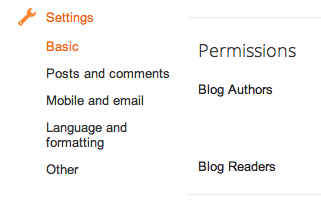
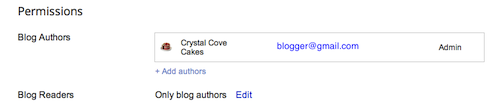
First, find the "Permissions" section under Settings | Basic.
 Settings | Basic
Then click Add Authors:
Add authors
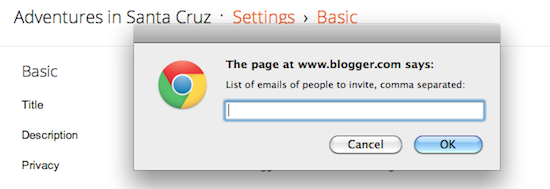
Next, type the email addresses of the people you're inviting to the blog, separating each address with a comma. They'll receive an email with a confirmation link soon. Note that they must have Google Accounts, and if they don't already, they'll be prompted to create one.
Add User
When you're ready to send the invitations, click OK.

Related Articles:

  • There were problems with my invitation. What do I do?
  • What is a blog administrator?
  • How do I remove a team member?
Diposting oleh Kormad di 02.06 Tidak ada komentar:
Kirimkan Ini lewat EmailBlogThis!Bagikan ke XBerbagi ke FacebookBagikan ke Pinterest

Blogger Guide, Why do I have word verification on my posting form?


Blogger Guide, Why do I have word verification on my posting form?

Word verification on the posting form is meant to be a spam reduction mechanism for BlogSpot in general. There are two potential causes:

Potential Spam

In this case, word verification is applied to certain potential spam blogs by an automated system. Because this is automated there will necessarily be some false positives, though we're continually working on improving our algorithms to avoid these. If your blog is one of the false positives, we apologize. Having the word verification on your posting form does not prevent you from publishing and does not mean that your blog will be deleted or otherwise punished if it is not actually in violation of our policies.
To avoid further inconveniences when publishing, click the "?" (question mark) icon next to the word verification on your posting form:
That will take you to a page where you can request a review for your blog. We'll have someone look at it, verify that it isn't spam, and then whitelist your blog so it no longer has the word verification requirement.

High Posting Rate

If you make a large number of posts in a single day, you will be required to complete a word verification for each one, independent of whether your blog has been cleared as a potential spam or not. If this happens to you, simply complete the word verification for each post, or wait 24 hours, at which point it will be removed automatically.
This restriction is in place as much to control the load on our servers as to prevent explicit spam. Therefore, there is not a whitelisting review process to exempt individual blogs.
Notes:
  • In cases where word verification is required, all posts made via email will be saved as drafts, rather than published.
  • This is unrelated to the word verification setting for comments.
  • If your word verification is continually reported as incorrect, even though you are entering the correct letters, please try logging out, clearing your browser's cache and Blogger.com cookies, then logging in again to post. Remember to copy and paste your post to a text file first, to keep it safe.
Diposting oleh Kormad di 01.47 Tidak ada komentar:
Kirimkan Ini lewat EmailBlogThis!Bagikan ke XBerbagi ke FacebookBagikan ke Pinterest

Blogger Guide, Quick Edit links


Blogger Guide, Quick Edit links

Quick Edit links give you quick and direct access to edit your posts after they've been published. You probably know the scenario well—you publish a long post, then start proofreading it on your blog. You find a mistake, so you go back to Blogger's Edit Posts page, locate the post and fix/republish it. You continue proofreading, find another mistake, and on and on. Quick Edit links take you directly to the post in Blogger, bypassing (most of) the process described previously.
Quick Edit links work their magic using cookies, so they only appear if you're signed in to your Google Account. Therefore, no one else sees them except you. To enable them, go to the Layout tab on your blog, and select “Edit” under the Blog post widget.
From there, check the box for "Show Quick Editing."
Here's what Quick Edit links look like:
Quick Edit link Enjoy!
(if they're acting funny for some reason, read on for some technical tidbits...)
  • If you're using a classic template, you must have the <$BlogMetaData$> tag in your template's <head> section, and the <$BlogItemControl$> tag wherever you want the Quick Edit links to appear. We suggest somewhere in your "Posted by" line.
  • CSS files are aggressively cached for performance reasons. This means you may have to reload or even super-reload (with the Shift key) to make links appear/disappear after you sign in or out. If you're signed out, you’ll still be prompted to sign back in.
  • Edit links on your own blog will only work if your browser is sending the referrer to Blogger, and if your blog URL's host is the same as the referrer host.
  • Finally, some more intense security settings will not send cookies to hosts other than the main one. This means your session cookie won't get sent to Blogger.com if you're looking at a blog, and the edit link won't show up.
Diposting oleh Kormad di 01.47 Tidak ada komentar:
Kirimkan Ini lewat EmailBlogThis!Bagikan ke XBerbagi ke FacebookBagikan ke Pinterest

Blogger Guide, Blogger Mobile

Blogger Guide, Blogger Mobile

How does Blogger Mobile work?

You send a message - which can be a photo, some text, or both - to go@blogger.com. We take care of the rest.
Here's how to start a mobile blog:
  1. Go to the Settings | Mobile and email tab on your blog.
  2. Click Add a mobile device.
  3. In the pop-up window that appears, you’ll see a verification code in the yellow box. If you have a non-US phone number or wish to post pictures, email the code to go@blogger.com. If your phone doesn’t support MMS, you can text the code to 256446 (BLOGGR). Once you send this verification code via text, you can start posting by texting your posts to the same number.
What types of messages can I send to Blogger Mobile from my phone?
MMS, SMS, or Email - note this doesn't include email sent from a mobile device that actually passes through a webmail gateway (such as mail sent from your stanford.edu account from your phone).
What size photos can I send?
Photos are currently limited to 250K each. If they exceed that size, you'll receive a bounce message letting you know so you can try again with a smaller picture. Note that your phone (or carrier) might have size limits of its own.
Is there a cost for using Blogger Mobile?
Mobile providers' standard rates for sending and receiving text and photo messages apply. Blogger won't charge you for any of its services.
Requirements

Text messaging-enabled mobile device with a text messaging plan. This service is free from Google but charges from your carrier for usage may apply.
Notes:
  • To cancel text message replies, text STOP to BLOGGR
  • To unlink your device from Blogger, text UNREGISTER to BLOGGR. You are free to then register with another blog if you wish.
  • For more information, send the keyword HELP to BLOGGR (256447)

Services that work with Blogger Mobile

Blogger Mobile currently supports the listed carriers for the following countries. The carriers are listed by their MMS alias. If you're unsure what alias your carrier uses, simply send a MMS to yourself at an email address and observe the From: field of the email.
Sony Ericsson phones use different functionality to connect you to your mobile blog. Please see this article for more information about using Sony Ericsson's BlogThis! feature.
If you do not see your carrier listed in the blow list, please let us know and we will do our best to accommodate your mobile service.
  • Australia
  • Czech Republic.
  • France
  • Germany
  • Ireland
  • Italy
  • Japan
  • Norway
  • Poland
  • Portugal
  • Spain
  • Sweden
  • United Kingdom
  • United States
  • Webmail
Australia
  • airdata.com
Czech Republic
  • smtp.etmail.cz
  • smtp.t-email.cz
  • smtp.vodafonemail.cz
  • iol.cz
France
  • smtp.bouygtel.fr
  • mail.sfr.net
  • smtp.orange.fr
Germany
  • o2online.de
Ireland
  • meteor.ie
  • o2.ie
  • vodafone.ie
  • orangemms.net
Italy
  • vodafone.it
  • mms.tim.it
  • mms.tre.it
  • mms.wind.it
Japan
  • docomo.ne.jp
  • ezweb.ne.jp
  • pdx.ne.jp
  • softbank.ne.jp
  • vodafone.ne.jp
Norway
  • mmsc.mobil.telenor.no
  • mms.mobyson.no
  • mobil.telenor.no
  • netcom.no,
Poland
  • eranet.pl
  • playmobile.pl
  • orange.pl
  • plusnet.pl
  • centertel.pl
Portugal
  • mms.vodafone.pt
  • mms.optimus.pt
Spain
  • movistar.com
Sweden
  • telia.com
United Kingdom
  • o2imail.co.uk
  • orange.co.uk
United States
  • airbridge.net
  • blackberry.net
  • blswe.com
  • cingularme.com
  • danger.com
  • dngr.net
  • gocbw.com
  • lightsurf.net
  • mmode.com
  • mms.att.net
  • mms.helio.com
  • mms.myhelio.com
  • mms.net
  • mycingular.com
  • mycingular.net
  • myvzw.com
  • nextel.com
  • sprint.com
  • sprintpcs.com
  • tmail.com
  • tmodns.net
  • tmomail.net
  • txt.att.net
  • verizon.net
  • vtext.com
  • vzwpix.com
Webmail
  • gmail.com
  • hotmail.com
  • yahoo.com

 I'm Having Trouble with Blogger Mobile

The first step is to test for a connection between your mobile device and our servers. We have created a simple test to help determine where your problem lies, and based on the results, will provide you with tips to get Blogger Mobile working properly.
Note: This test is only for Blogger Mobile, and not for Sony Ericsson's BlogThis! feature. For information on BlogThis!, please take a look at this handy help article.
First, send a text message with your email address to test@blogger.com. If a good connection exists, you should then receive a text reply from Blogger on your mobile device. In addition, we'll email the same response to you at the address you specified.
You should receive one of the following messages:
  • Your carrier is not supported by Blogger Mobile: We're working to support as many carriers as possible. In the meantime, you can try our Mail-to-Blogger feature.
  • Error finding token: We received a message from your mobile device, but were unable to find your token.
  • No Corresponding blog found: A good connection exists between your mobile device and Blogger, however, it seems that you haven't created a blog yet. Send an MMS to go@blogger.com to create your mobile blog, then run this test again if you don't receive a token.
  • Blog Token [XXXXX]: This is your mobile token. You can use it to claim your mobile blog at go.blogger.com. When you claim your blog, you'll have the option to merge this blog with an existing blog.
 
Diposting oleh Kormad di 01.46 Tidak ada komentar:
Kirimkan Ini lewat EmailBlogThis!Bagikan ke XBerbagi ke FacebookBagikan ke Pinterest

Blogger Guide Draft a post

Blogger Guide

Draft a post

A draft is a post that's in progress. It won't show up on your blog, but you can access it from your Dashboard if you'd like to edit and later publish it.
To mark a post as draft, simply click Save at the top of the Post Editor when you're done drafting your post.
Save your post
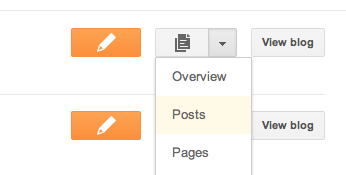
To edit a draft post, click on Posts from the drop-down menu on your Dashboard, and then click on "Edit" next to the post you'd like to edit.
Edit your draft
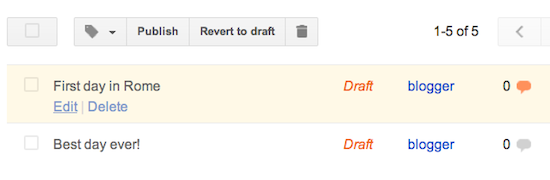
There are visual indicators in the list that posts are drafts: They have no "View" links like published posts do, and they include the word "Draft" to the right of their titles.
Drafts can be published, and published posts can be converted into drafts simply by clicking the appropriate "Publish" or "Revert to draft" button when editing the post. Once you click "Publish," changes should be visible immediately after the publish process completes, unless you've chosen to schedule your post. On occasion it may take longer for posts to appear. If you don't see your newest addition right away, be sure to refresh the page in your browser.
Watch a video on how to post to your blog

More videos
Diposting oleh Kormad di 01.44 Tidak ada komentar:
Kirimkan Ini lewat EmailBlogThis!Bagikan ke XBerbagi ke FacebookBagikan ke Pinterest

Blogger Guide Create a new page on your blog

Blogger Guide

Create a new page on your blog

You can organize your blog into separate sections like “About me,” “Contact me” or “Advertise” using pages. Pages appear as either tabs on the top of your page or links on the side of the page. Pages differ from your homepage because they are usually used to display content that doesn't need to change very often. For example, the blog below has pages for “about me,” “workshops & classes,” “shop online” and more.

Create a new page

  1. Sign in to blogger.com and click on your blog.
  2. Select “Pages” from the left navigation bar on your dashboard.

  3. Click New Page.
  4. Click Save to create a draft of the page you can review and publish later. You can also click Preview to open a new tab previewing what your new page will look like. Click Publish to create the live page on your blog now.

Edit pages

You can edit a page you’ve created to add new content, images, or videos.
  1. Select “Pages” from the drop-down menu of your dashboard.
  2. Click the “edit” link below the page you’d like to edit.

  3. Make edits to your page.
  4. Click Update to publish the page with your edits, or Revert to draft to publish the page later. You can also click Preview to open a new tab to see what your edited page will look like.
If you want to delete a page linking to an external site, you have to delete it from within the Pages gadget by clicking the “x” to the right of the link.

Edit page layout

You can change where your pages appear on your blog by adding the page list gadget to your blog:
  1. Select “Layout” from the drop-down menu of your dashboard.
  2. A preview of your blog’s layout will appear. Your can choose to have your pages appear on the top, bottom, right or left side of your blog. Click the “Add a Gadget” link beside the section where you'd like your pages to show. For example, if you’d like them to appear as tabs on the top of your blog, click the “Add a Gadget” link at the top of your layout.
  3. Select the “Pages” gadget from the “Add a Gadget” list.
  4. Under “Pages to Show,” check the boxes next to the pages you would like to display on your blog.
  5. Under “Page Order,” drag and drop the boxes to choose the order in which your pages will appear.
  6. Click Save.
  7. Click Save arrangement in the upper right to save your layout.

Manage drafts and published pages

You can navigate between viewing all your pages, just your drafted pages, or only your published pages using the sidebar on the left of your page. Under the “Pages” section of the sidebar, you should see categories for All, Draft, and Published with the number of pages in that status in parenthesis. You may also see a category for Imported pages if you’ve imported your pages from another platform like Wordpress.

Create a page linking to an external site

To create a page that links to a site outside of Blogger:
  1. Select “Layout” from the drop-down menu of your dashboard.
  2. A preview of your blog’s layout will appear. Click the “Add a Gadget” link beside the section where you’d like to show your pages.
  3. Select the “Pages” gadget from the “Add a Gadget” list.
  4. Click “+Add link page.”
  5. In the window that opens, fill in the page title and the web address you’d like to redirect readers to when they click on this page.
  6. Click Save Link.
  7. You should see the new page listed under “Page Order.” Click Save at the bottom of the gadget window.
  8. Click Save arrangement in the upper right to save your layout.


Details about pages

  • Each blog can have up to 20 pages.
  • The way you choose to display your pages (for example, top tabs) applies to all of your pages.
  • Certain third party templates may not support pages as top tabs, but pages can still be added as side links.
Diposting oleh Kormad di 01.44 Tidak ada komentar:
Kirimkan Ini lewat EmailBlogThis!Bagikan ke XBerbagi ke FacebookBagikan ke Pinterest

Blogger Guide Create 'After the jump' summaries

Blogger Guide

Create 'After the jump' summaries

After the Jump is a feature which lets you create expandable post summaries in your blog posts, so longer posts appear as an intro with a link to Read More.
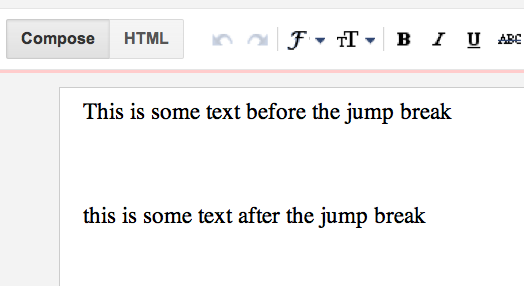
Creating jump breaks in your blog posts can be easily done right from the Post Editor, without the need for any HTML changes. First, decide where in the post you want to create the jump break, and place your cursor in that position:

The text where you want to jump
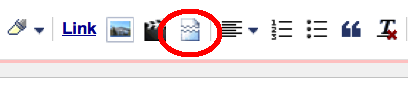
Once your mouse cursor is placed at the jump point, simply click the Insert Jump Break toolbar icon:

Jump icon in the toolbar
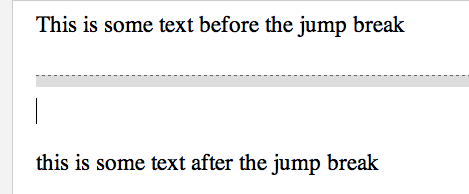
Clicking the icon will insert a grey bar at the cursor point, illustrating where in the post your break will appear. The bar can be dragged though, so you can always re-position it after insertion.

Gray jump line
Once you decide on the jump break's location within the post, you're ready to publish your post. After publishing, you'll notice that the Read More link is placed where you set the jump break. Clicking on the Read More link will then display the full text of the post.
If you feel like changing the Read More text to your own custom phrase, you can easily do this from the Layout tab. Click Edit on the Blog Post widget, and then change the Post page link text to whatever you'd like.
The Jump Break feature doesn't change how your post appears in your feed. You can configure post feed options by going to Settings | Basic | Other, and editing Allow Blog Feed.
Diposting oleh Kormad di 01.43 Tidak ada komentar:
Kirimkan Ini lewat EmailBlogThis!Bagikan ke XBerbagi ke FacebookBagikan ke Pinterest

Blogger Guide Edit posts

Blogger Guide

Edit posts

You can edit your posts by clicking on "Posts" from the drop-down menu on your Dashboard. Edit a Post
From there, click the "Edit" link next to the post you'd like to edit:
Edit a draft
That will take you to the posting form, which includes all posts you've written that are either published or saved as drafts. When you're done editing, you can click Preview to see what your post will look like on the blog, or go straight to Publish.
Publish post
Watch a video on how to post to your blog

More videos
Diposting oleh Kormad di 01.43 Tidak ada komentar:
Kirimkan Ini lewat EmailBlogThis!Bagikan ke XBerbagi ke FacebookBagikan ke Pinterest

Blogger Guide Schedule posts

Blogger Guide

Schedule posts

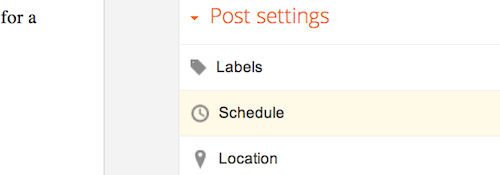
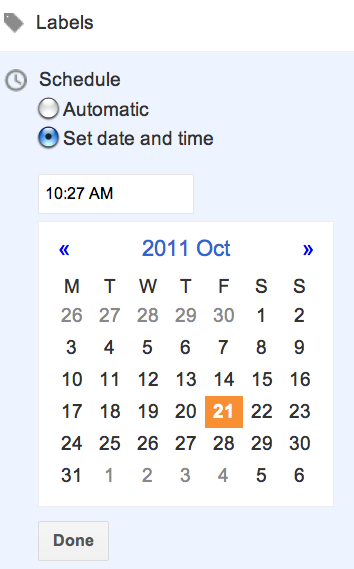
If you'd like your post to automatically publish at a specific date and time, you can schedule your posts on the Post Editor. Under "Post Settings" on the right-hand side, just click on Schedule.
The Schedule option under Post Settings
If you select Set date and time, you can choose a date and time on a calendar for your post to be automatically published.
Set the date and time for your post
Once you've selected a new date and time, be sure to click Publish. Don't worry -- your post will only publish at the date and time that you've determined in the settings.
Watch a video on how to post to your blog


Diposting oleh Kormad di 01.42 Tidak ada komentar:
Kirimkan Ini lewat EmailBlogThis!Bagikan ke XBerbagi ke FacebookBagikan ke Pinterest

Blogger Guide Blogger's post editor

Blogger Guide

Blogger's post editor

Blogger's post editor has three modes:
  • Compose: a wysiwyg mode where you manipulate text with formatting buttons
  • Edit HTML: a raw mode where you edit the html manually
  • Preview: renders a full-body preview of the post, including its Title, links and images
To switch between these modes, simply click the appropriate link:
Post Editor
Features, from left-to-right:
  • Undo
  • Redo
  • Font
  • Font size
  • Headings
  • Bold
  • Italic
  • Underline
  • Strikethrough
  • Font color
  • Background color
  • Link
  • Image
  • Video
  • Jumpbreak
  • Justify text
  • Ordered (numbered) list
  • Unordered (bullet) list
  • Blockquote
  • Spell check
  • Upload image
  • Remove formatting from selection
Developing an advanced, standards-compliant web-based rich text editor presented a significant engineering challenge. If you'd like to know more about its development, one of our engineers posted a nice writeup about it on his blog.
Diposting oleh Kormad di 01.40 Tidak ada komentar:
Kirimkan Ini lewat EmailBlogThis!Bagikan ke XBerbagi ke FacebookBagikan ke Pinterest

Blogger Guide How do I use the transliteration feature?

Blogger Guide

How do I use the transliteration feature?

The Quick Answer

  • Go to the Settings | Language and formatting tab and enable the transliteration option.
  • * Select your language.
  • Click the Transliteration button on the posting form to type in transliteration mode.

What is transliteration?

Blogger offers an automatic transliteration option for converting Roman characters to the characters used in the following languages:
  • Amharic
  • Arabic
  • Bengali
  • Greek
  • Persian
  • Gujarati
  • Kannada
  • Hindi
  • Malayalam
  • Marathi
  • Nepali
  • Punjabi
  • Russian
  • Sanskrit
  • Serbian
  • Tamil
  • Telugu
  • Tigrinya
  • Urdu
This lets you type these languages phonetically in English script and still have them appear in their correct alphabet. Note that this is not the same as translation -- the sound of the words is converted from one alphabet to the other, not the meaning. For example, typing 'hamesha' transliterates into Hindi as:

Enabling the Transliteration Feature

To enable this feature, go to the Settings | Language and formatting page, select Enable for the transliteration option, and select your preferred language. This setting will affect all blogs on your account.
enable_transliteration Next, go to your post editor and you'll see a new button.

Typing with Transliteration

This button toggles the transliteration feature on and off. When it's on, it affects the title, labels, and body of your post. The letters of a word will appear in a box with alternative suggestions as you type them until you reach the end of the word. As soon as you type a space or a punctuation mark, the letters will be converted to the new characters, like this:
If you prefer to do the transliteration all at once, rather than as you go, you can type your text with the transliteration button turned off. Then select all your text and click the button. Everything selected will be transliterated at once, and you can go back and edit it as desired. (Note: This only works in the body of the post, not in the title or labels.)
The transliteration will attempt to match the sounds of the letters as accurately as possible between the two alphabets. If you find that it's incorrect, however, you can fix it.
Diposting oleh Kormad di 01.40 Tidak ada komentar:
Kirimkan Ini lewat EmailBlogThis!Bagikan ke XBerbagi ke FacebookBagikan ke Pinterest

Blogger Guide Limits on Blogger

Blogger Guide

Limits on Blogger

We try to give you a lot of room to play here on Blogger, so you'll see that a lot of the important "limits" here aren't really very limiting. But just in case you were wondering, here is some information about what a single Blogger account will hold.
Number of Blogs: You can have up to 100 blogs per account.
Number of Posts: There is no limit on the number of posts you can have on one blog. They will all be saved on your account (unless you manually delete them) regardless of whether you are publishing archives or not.
Size of Posts: Individual posts do not have a specific size limit, but very large posts may run you up against the page size limit. (See the next item.)
Size of Pages: Individual pages (the main page of your blog, or your archive pages) are limited to 1 MB in size. This will allow for a few hundred pages of text, but it may be a problem if you are listing hundreds of posts on the front page of your blog. If you hit this limit, you will see an error message saying "006 Please contact Blogger Support." You can get around this error by lowering the number of posts on your main page, which will have the added benefit of making your page load faster as well.
Number of Comments: A post can have any number of comments. As with archived posts, if you choose to hide comments on your blog, all pre-existing comments will remain saved on your account.
Number of Pictures: Up to 1 GB of total storage, shared with Picasa Web. If you've upgraded to Google+, your photos will be stored in Google+ Photos, where you have 15GB of storage space shared with Gmail and Drive.
Size of Pictures: If you are posting pictures through Blogger Mobile there is a limit of 250K per picture.
Team Members: There is a limit of 100 members per blog.
Number of Labels: Up to 2000 unique labels per blog and 20 per post.
Blog Description: Limited to 500 characters, with no HTML. Adding additional characters or HTML may cause it to revert to a previous setting.
"About Me" Profile Information: Maximum of 1,200 characters.
Profile Interests and Favorites: Maximum of 2,000 characters in each field.
  Importing blogs: there are no file size limits for importing blog. Limits for number of imports in a day may apply.

  Note: Users of the discontinued BlogSpot Plus service have a slightly different set up. Since these accounts included full FTP access, they were limited to either 25 MB or 100 MB, depending on which type of upgrade they had. In these cases, if you fill up your allotted space with images or other files, then you may not be able to upload new posts. To get around this, you will need to remove unused files from the account in order to free up more space.
Diposting oleh Kormad di 01.40 Tidak ada komentar:
Kirimkan Ini lewat EmailBlogThis!Bagikan ke XBerbagi ke FacebookBagikan ke Pinterest

Blogger Guide Find an old post

Blogger Guide

Find an old post

All your posts are available for editing on the Posts tab, which you can access from the drop-down menu on your Dashboard.
Edit posts>.    <p>You can use the search box at the top right to filter the list for posts containing particular words. Next to the search box is a drop-down menu for labels, so you can click on a label in the menu and you'll see only posts with that label. You can also change the number of posts displayed, or use the arrows to scroll back in time through the chronological list.</p>   <img src= On the left side of the list of posts, you'll find links to display only drafts, or only published posts.
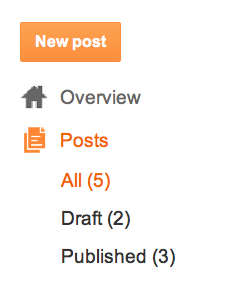
Search for drafts or published posts. Note: You can use Quick Edit links to edit your posts directly from your archives. This is the easiest option for finding and editing old posts from particular dates.
Diposting oleh Kormad di 01.39 Tidak ada komentar:
Kirimkan Ini lewat EmailBlogThis!Bagikan ke XBerbagi ke FacebookBagikan ke Pinterest

Blogger Guide About post templates

Blogger Guide

About post templates

Post templates help save you time by pre-formatting the post editor. Some users like their posts to be formatted in a certain way; here's an example where the user links to an article on the first line, then quotes it below:
To create your own post template, go to Settings | Posts and comments, then click Add next to Post Template.
Diposting oleh Kormad di 01.39 Tidak ada komentar:
Kirimkan Ini lewat EmailBlogThis!Bagikan ke XBerbagi ke FacebookBagikan ke Pinterest

Blogger Guide How are line breaks treated?

Blogger Guide

How are line breaks treated?

This option is found on your Settings | Formatting page.
If 'convert line breaks' is set to yes, HTML tags (<br />) will be entered for you automatically when your posts contain hard returns. Double returns will create two <br /> tags.
If it is turned off, you will have to enter your own breaking tags. Otherwise, you will not see your blank lines when you publish your blog.
Diposting oleh Kormad di 01.38 Tidak ada komentar:
Kirimkan Ini lewat EmailBlogThis!Bagikan ke XBerbagi ke FacebookBagikan ke Pinterest

Blogger Guide, Link to other websites

Blogger Guide

Link to other websites

  1. Highlight the text you'd like to turn into a link. If you do not select any text before using the link button, your link will be created but without anything to click on.
  2. Click the Link button (or hit control+shift+a on your keyboard):
  3. A pop-up window will appear prompting you for a URL you'd like to link to. Type the URL in the text box.
If this link button doesn't appear in your browser, or isn't working for some reason, you can type in the link by hand by clicking Edit HTML and typing in:
<a href="http://URL">TEXT</a>

Here's an example scenario:

Let's say you want to tell people about some cool website you found, let's call it, www.somecoolwebsite.com. Here's an example of what you might type into your blog:
Hey all. Check out <a href="http://www.somecoolwebsite.com">this site</a>! It's a really cool website I found.
In this example, the word "this" would be the link to www.somecoolwebsite.com. That is, it would show up as a blue underlined word on your blog. The key things to note are:
  1. The "a href" stuff must be enclosed in these kind of brackets <>. That lets the computer know you're entering HTML and not just typing stuff to be displayed.
  2. The website you want to link to must be in quotes, and must always start with http://. If you don't have the http://, the link probably won't work.
  3. Any text you type after the > that closes out the bit where you write the website address will be the actual link that shows up on your blog. The tag lets the computer know that any text after is just normal text and should not be part of the link. Note: You have to put the > in, otherwise the rest of your blog post will be treated as a link, and it will probably cause other weird things to happen that you don't want.
Diposting oleh Kormad di 01.37 Tidak ada komentar:
Kirimkan Ini lewat EmailBlogThis!Bagikan ke XBerbagi ke FacebookBagikan ke Pinterest

Blogger Guide, Delete a blog post


Blogger Guide, Delete a blog post

To delete a specific post, just go to the Posts tab from your Dashboard, and hover over the post you'd like to delete. The Delete link should appear when you hover -- click that, and then confirm your deletion. To delete multiple posts at once, you can check the boxes next to all the posts you'd like to delete, and click the trash can icon.

When you delete a post, the post is only deleted from your blog. If you’ve posted your content in other places, such as a Google+ post (see example below), you will need to delete that content separately. Once you delete your blog post, any links to that blog post will result in a 404 error page.
Diposting oleh Kormad di 01.37 Tidak ada komentar:
Kirimkan Ini lewat EmailBlogThis!Bagikan ke XBerbagi ke FacebookBagikan ke Pinterest

Blogger Guide how to Posting & Editing


Blogger Guide how to Posting & Editing

  • Delete a blog post
  • Link to other websites
  • How are line breaks treated?
  • About post templates
  • Find an old post
  • Compatible browser and operating systems
  • Limits on Blogger
  • How do I use the transliteration feature?
  • Blogger's post editor
  • Schedule posts
  • Edit posts
  • Create 'After the jump' summaries
  • Create a new page on your blog
  • Draft a post
  • Blogger Mobile
  • Quick Edit links
  • Why do I have word verification on my posting form?
Diposting oleh Kormad di 01.34 Tidak ada komentar:
Kirimkan Ini lewat EmailBlogThis!Bagikan ke XBerbagi ke FacebookBagikan ke Pinterest

Blogger Guide, About the Navbar


Blogger Guide, About the Navbar

The Blogger Navbar appears by default at the top of every Blogger-powered blog, unless you're using Dynamic Views.
navbar
Navbar_leftnavbar_right Navbar features include:
  • [B]: Takes you back to www.blogger.com.
  • Search box: Searches the blog you're viewing. Results will appear directly on the page.
  • G+ share button: Lets you share the blog to your circles on Google+.
  • More: This drop-down lets you share the blog by email or on other social websites as well as notify our team of a Terms of Service violation by clicking "Report Abuse." You can also report abuse through our Help Center.
  • Next Blog: Takes you to a recently-updated Blogger blog similar to the one you're currently viewing.
  • [email address]: If you're signed in to your account, you'll see your own address here. Other viewers will see their own email addresses, or none at all if they aren't signed in.
  • New Post and Design: If you're signed in, these links will take you to your Blogger Dashboard.
  • Sign In/Out: This displays the appropriate option, depending on whether you're signed in or not.
The Navbar is available in several colors, and is configured in the Layout tab in Blogger's interface. Just click the "Edit" link on the Navbar page element.
Edit navbar Notes:
  • We've made every effort to make sure the Navbar doesn't interfere with custom template designs. However, some display problems may occur. Here are a few things to try if you are running into trouble:
    • add style="margin-top:40px;" to the topmost element of your Template. (i.e. <table> would become <table style="margin-top:40px;">)
    • make sure the closing </head> tag is present; it should go before the <body> tag.
Diposting oleh Kormad di 01.32 Tidak ada komentar:
Kirimkan Ini lewat EmailBlogThis!Bagikan ke XBerbagi ke FacebookBagikan ke Pinterest
Postingan Lebih Baru Postingan Lama Beranda
Langganan: Komentar (Atom)

Arsip Blog

  • ▼  2014 (30)
    • ▼  Oktober (30)
      • Blogger Guide, Comment Inbox
      • Blogger Guide, The word-verification option
      • Blogger Guide, Comment with OpenID
      • Blogger Guide, Moderate comments
      • Blogger Guide, Leave comments on a blog
      • Blogger Guide, how to Create a team blog
      • Blogger Guide, Why do I have word verification on ...
      • Blogger Guide, Quick Edit links
      • Blogger Guide, Blogger Mobile
      • Blogger Guide Draft a post
      • Blogger Guide Create a new page on your blog
      • Blogger Guide Create 'After the jump' summaries
      • Blogger Guide Edit posts
      • Blogger Guide Schedule posts
      • Blogger Guide Blogger's post editor
      • Blogger Guide How do I use the transliteration fea...
      • Blogger Guide Limits on Blogger
      • Blogger Guide Find an old post
      • Blogger Guide About post templates
      • Blogger Guide How are line breaks treated?
      • Blogger Guide, Link to other websites
      • Blogger Guide, Delete a blog post
      • Blogger Guide how to Posting & Editing
      • Blogger Guide, About the Navbar
      • Blogger Guide, Create and change URLs
      • Blogger Guide, Compatible browser and operating sy...
      • Blogger Guide, About Blogger profiles
      • Blogger Guide, Blogger Template Designer
      • Blogger Guide, Blogger Getting Started Guide
      • Index Blogger Start Guide
Tema Kelembutan. Diberdayakan oleh Blogger.