Selasa, 28 Oktober 2014

Blogger Guide, Blogger Mobile

Blogger Guide, Blogger Mobile

How does Blogger Mobile work?

You send a message - which can be a photo, some text, or both - to go@blogger.com. We take care of the rest.
Here's how to start a mobile blog:
  1. Go to the Settings | Mobile and email tab on your blog.
  2. Click Add a mobile device.
  3. In the pop-up window that appears, you’ll see a verification code in the yellow box. If you have a non-US phone number or wish to post pictures, email the code to go@blogger.com. If your phone doesn’t support MMS, you can text the code to 256446 (BLOGGR). Once you send this verification code via text, you can start posting by texting your posts to the same number.
What types of messages can I send to Blogger Mobile from my phone?
MMS, SMS, or Email - note this doesn't include email sent from a mobile device that actually passes through a webmail gateway (such as mail sent from your stanford.edu account from your phone).
What size photos can I send?
Photos are currently limited to 250K each. If they exceed that size, you'll receive a bounce message letting you know so you can try again with a smaller picture. Note that your phone (or carrier) might have size limits of its own.
Is there a cost for using Blogger Mobile?
Mobile providers' standard rates for sending and receiving text and photo messages apply. Blogger won't charge you for any of its services.
Requirements

Text messaging-enabled mobile device with a text messaging plan. This service is free from Google but charges from your carrier for usage may apply.
Notes:
  • To cancel text message replies, text STOP to BLOGGR
  • To unlink your device from Blogger, text UNREGISTER to BLOGGR. You are free to then register with another blog if you wish.
  • For more information, send the keyword HELP to BLOGGR (256447)

Services that work with Blogger Mobile

Blogger Mobile currently supports the listed carriers for the following countries. The carriers are listed by their MMS alias. If you're unsure what alias your carrier uses, simply send a MMS to yourself at an email address and observe the From: field of the email.
Sony Ericsson phones use different functionality to connect you to your mobile blog. Please see this article for more information about using Sony Ericsson's BlogThis! feature.
If you do not see your carrier listed in the blow list, please let us know and we will do our best to accommodate your mobile service.
Australia
  • airdata.com
Czech Republic
  • smtp.etmail.cz
  • smtp.t-email.cz
  • smtp.vodafonemail.cz
  • iol.cz
France
  • smtp.bouygtel.fr
  • mail.sfr.net
  • smtp.orange.fr
Germany
  • o2online.de
Ireland
  • meteor.ie
  • o2.ie
  • vodafone.ie
  • orangemms.net
Italy
  • vodafone.it
  • mms.tim.it
  • mms.tre.it
  • mms.wind.it
Japan
  • docomo.ne.jp
  • ezweb.ne.jp
  • pdx.ne.jp
  • softbank.ne.jp
  • vodafone.ne.jp
Norway
  • mmsc.mobil.telenor.no
  • mms.mobyson.no
  • mobil.telenor.no
  • netcom.no,
Poland
  • eranet.pl
  • playmobile.pl
  • orange.pl
  • plusnet.pl
  • centertel.pl
Portugal
  • mms.vodafone.pt
  • mms.optimus.pt
Spain
  • movistar.com
Sweden
  • telia.com
United Kingdom
  • o2imail.co.uk
  • orange.co.uk
United States
  • airbridge.net
  • blackberry.net
  • blswe.com
  • cingularme.com
  • danger.com
  • dngr.net
  • gocbw.com
  • lightsurf.net
  • mmode.com
  • mms.att.net
  • mms.helio.com
  • mms.myhelio.com
  • mms.net
  • mycingular.com
  • mycingular.net
  • myvzw.com
  • nextel.com
  • sprint.com
  • sprintpcs.com
  • tmail.com
  • tmodns.net
  • tmomail.net
  • txt.att.net
  • verizon.net
  • vtext.com
  • vzwpix.com
Webmail
  • gmail.com
  • hotmail.com
  • yahoo.com

 I'm Having Trouble with Blogger Mobile

The first step is to test for a connection between your mobile device and our servers. We have created a simple test to help determine where your problem lies, and based on the results, will provide you with tips to get Blogger Mobile working properly.
Note: This test is only for Blogger Mobile, and not for Sony Ericsson's BlogThis! feature. For information on BlogThis!, please take a look at this handy help article.
First, send a text message with your email address to test@blogger.com. If a good connection exists, you should then receive a text reply from Blogger on your mobile device. In addition, we'll email the same response to you at the address you specified.
You should receive one of the following messages:
  • Your carrier is not supported by Blogger Mobile: We're working to support as many carriers as possible. In the meantime, you can try our Mail-to-Blogger feature.
  • Error finding token: We received a message from your mobile device, but were unable to find your token.
  • No Corresponding blog found: A good connection exists between your mobile device and Blogger, however, it seems that you haven't created a blog yet. Send an MMS to go@blogger.com to create your mobile blog, then run this test again if you don't receive a token.
  • Blog Token [XXXXX]: This is your mobile token. You can use it to claim your mobile blog at go.blogger.com. When you claim your blog, you'll have the option to merge this blog with an existing blog.
 

Blogger Guide Draft a post

Blogger Guide

Draft a post

A draft is a post that's in progress. It won't show up on your blog, but you can access it from your Dashboard if you'd like to edit and later publish it.
To mark a post as draft, simply click Save at the top of the Post Editor when you're done drafting your post.
Save your post
To edit a draft post, click on Posts from the drop-down menu on your Dashboard, and then click on "Edit" next to the post you'd like to edit.
Edit your draft
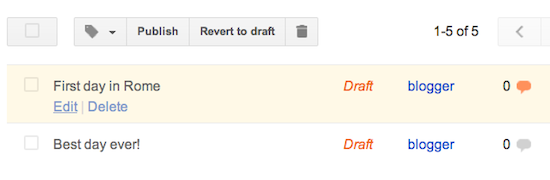
There are visual indicators in the list that posts are drafts: They have no "View" links like published posts do, and they include the word "Draft" to the right of their titles.
Drafts can be published, and published posts can be converted into drafts simply by clicking the appropriate "Publish" or "Revert to draft" button when editing the post. Once you click "Publish," changes should be visible immediately after the publish process completes, unless you've chosen to schedule your post. On occasion it may take longer for posts to appear. If you don't see your newest addition right away, be sure to refresh the page in your browser.

Blogger Guide Create a new page on your blog

Blogger Guide

Create a new page on your blog

You can organize your blog into separate sections like “About me,” “Contact me” or “Advertise” using pages. Pages appear as either tabs on the top of your page or links on the side of the page. Pages differ from your homepage because they are usually used to display content that doesn't need to change very often. For example, the blog below has pages for “about me,” “workshops & classes,” “shop online” and more.

Create a new page

  1. Sign in to blogger.com and click on your blog.
  2. Select “Pages” from the left navigation bar on your dashboard.

  3. Click New Page.
  4. Click Save to create a draft of the page you can review and publish later. You can also click Preview to open a new tab previewing what your new page will look like. Click Publish to create the live page on your blog now.

Edit pages

You can edit a page you’ve created to add new content, images, or videos.
  1. Select “Pages” from the drop-down menu of your dashboard.
  2. Click the “edit” link below the page you’d like to edit.

  3. Make edits to your page.
  4. Click Update to publish the page with your edits, or Revert to draft to publish the page later. You can also click Preview to open a new tab to see what your edited page will look like.
If you want to delete a page linking to an external site, you have to delete it from within the Pages gadget by clicking the “x” to the right of the link.

Edit page layout

You can change where your pages appear on your blog by adding the page list gadget to your blog:
  1. Select “Layout” from the drop-down menu of your dashboard.
  2. A preview of your blog’s layout will appear. Your can choose to have your pages appear on the top, bottom, right or left side of your blog. Click the “Add a Gadget” link beside the section where you'd like your pages to show. For example, if you’d like them to appear as tabs on the top of your blog, click the “Add a Gadget” link at the top of your layout.
  3. Select the “Pages” gadget from the “Add a Gadget” list.
  4. Under “Pages to Show,” check the boxes next to the pages you would like to display on your blog.
  5. Under “Page Order,” drag and drop the boxes to choose the order in which your pages will appear.
  6. Click Save.
  7. Click Save arrangement in the upper right to save your layout.

Manage drafts and published pages

You can navigate between viewing all your pages, just your drafted pages, or only your published pages using the sidebar on the left of your page. Under the “Pages” section of the sidebar, you should see categories for All, Draft, and Published with the number of pages in that status in parenthesis. You may also see a category for Imported pages if you’ve imported your pages from another platform like Wordpress.

Create a page linking to an external site

To create a page that links to a site outside of Blogger:
  1. Select “Layout” from the drop-down menu of your dashboard.
  2. A preview of your blog’s layout will appear. Click the “Add a Gadget” link beside the section where you’d like to show your pages.
  3. Select the “Pages” gadget from the “Add a Gadget” list.
  4. Click “+Add link page.”
  5. In the window that opens, fill in the page title and the web address you’d like to redirect readers to when they click on this page.
  6. Click Save Link.
  7. You should see the new page listed under “Page Order.” Click Save at the bottom of the gadget window.
  8. Click Save arrangement in the upper right to save your layout.


Details about pages

  • Each blog can have up to 20 pages.
  • The way you choose to display your pages (for example, top tabs) applies to all of your pages.
  • Certain third party templates may not support pages as top tabs, but pages can still be added as side links.

Blogger Guide Create 'After the jump' summaries

Blogger Guide

Create 'After the jump' summaries

After the Jump is a feature which lets you create expandable post summaries in your blog posts, so longer posts appear as an intro with a link to Read More.
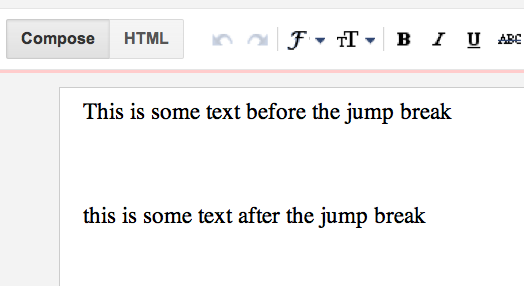
Creating jump breaks in your blog posts can be easily done right from the Post Editor, without the need for any HTML changes. First, decide where in the post you want to create the jump break, and place your cursor in that position:

The text where you want to jump
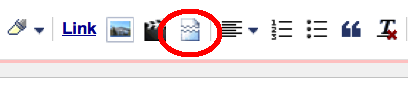
Once your mouse cursor is placed at the jump point, simply click the Insert Jump Break toolbar icon:

Jump icon in the toolbar
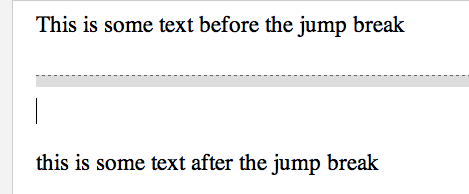
Clicking the icon will insert a grey bar at the cursor point, illustrating where in the post your break will appear. The bar can be dragged though, so you can always re-position it after insertion.

Gray jump line
Once you decide on the jump break's location within the post, you're ready to publish your post. After publishing, you'll notice that the Read More link is placed where you set the jump break. Clicking on the Read More link will then display the full text of the post.
If you feel like changing the Read More text to your own custom phrase, you can easily do this from the Layout tab. Click Edit on the Blog Post widget, and then change the Post page link text to whatever you'd like.
The Jump Break feature doesn't change how your post appears in your feed. You can configure post feed options by going to Settings | Basic | Other, and editing Allow Blog Feed.

Blogger Guide Edit posts

Blogger Guide

Edit posts

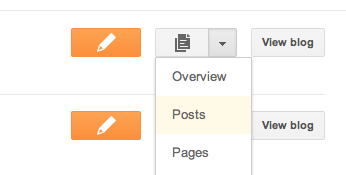
You can edit your posts by clicking on "Posts" from the drop-down menu on your Dashboard. Edit a Post
From there, click the "Edit" link next to the post you'd like to edit:
Edit a draft
That will take you to the posting form, which includes all posts you've written that are either published or saved as drafts. When you're done editing, you can click Preview to see what your post will look like on the blog, or go straight to Publish.
Publish post

Blogger Guide Schedule posts

Blogger Guide

Schedule posts

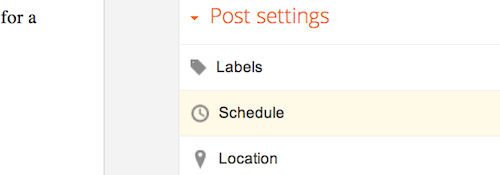
If you'd like your post to automatically publish at a specific date and time, you can schedule your posts on the Post Editor. Under "Post Settings" on the right-hand side, just click on Schedule.
The Schedule option under Post Settings
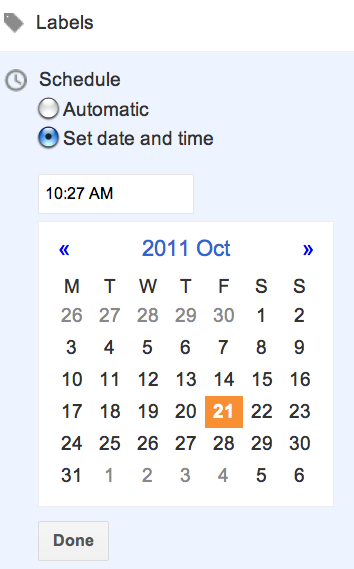
If you select Set date and time, you can choose a date and time on a calendar for your post to be automatically published.
Set the date and time for your post
Once you've selected a new date and time, be sure to click Publish. Don't worry -- your post will only publish at the date and time that you've determined in the settings.


Blogger Guide Blogger's post editor

Blogger Guide

Blogger's post editor

Blogger's post editor has three modes:
  • Compose: a wysiwyg mode where you manipulate text with formatting buttons
  • Edit HTML: a raw mode where you edit the html manually
  • Preview: renders a full-body preview of the post, including its Title, links and images
To switch between these modes, simply click the appropriate link:
Post Editor
Features, from left-to-right:
  • Undo
  • Redo
  • Font
  • Font size
  • Headings
  • Bold
  • Italic
  • Underline
  • Strikethrough
  • Font color
  • Background color
  • Link
  • Image
  • Video
  • Jumpbreak
  • Justify text
  • Ordered (numbered) list
  • Unordered (bullet) list
  • Blockquote
  • Spell check
  • Upload image
  • Remove formatting from selection
Developing an advanced, standards-compliant web-based rich text editor presented a significant engineering challenge. If you'd like to know more about its development, one of our engineers posted a nice writeup about it on his blog.